CareSignal SMS Consent & Text Alert Opt-In
About CareSignal
CareSignal is a wellness awareness and family communication service operated by ZAYBU CONSULTING SOLUTIONS INC. under the MedTech Care brand. CareSignal provides transactional wellness and safety notifications to authorized family members and caregivers who are linked to a senior CareSignal account.
Who Receives SMS Messages
CareSignal SMS alerts are available only to designated Family-side users, caregivers, and authorized contacts who are linked to a senior account and who expressly opt in to receive Text Alerts. Senior accounts do not receive SMS alerts under this messaging campaign.
Important Consent Clarification
Providing a mobile phone number, creating a CareSignal account, accepting an invitation, or linking to a senior account does not by itself constitute consent to receive SMS messages. Text Alerts are optional and are disabled by default.
Please note: The screenshots below show the complete CareSignal SMS opt-in flow. The “How to Get Started with CareSignal” section walks users through account setup, including mobile phone number collection during registration. Providing a phone number does not enable SMS messaging. The “How SMS Messaging Opt-In Works” section then shows plan eligibility, Alert Settings, and the separate in-app consent action required before Text Alerts can be enabled.
How to Get Started with CareSignal
ExpandableSupplementary context showing where a mobile phone number is collected during account setup. This is not SMS opt-in consent.
How SMS Messaging Opt-In Works
CareSignal SMS alerts are optional and are OFF by default. Providing a mobile phone number during account registration does not, by itself, enable SMS alerts. To receive CareSignal SMS alerts, the user must be subscribed to an eligible CareSignal plan and must separately opt in to SMS messaging through the app.
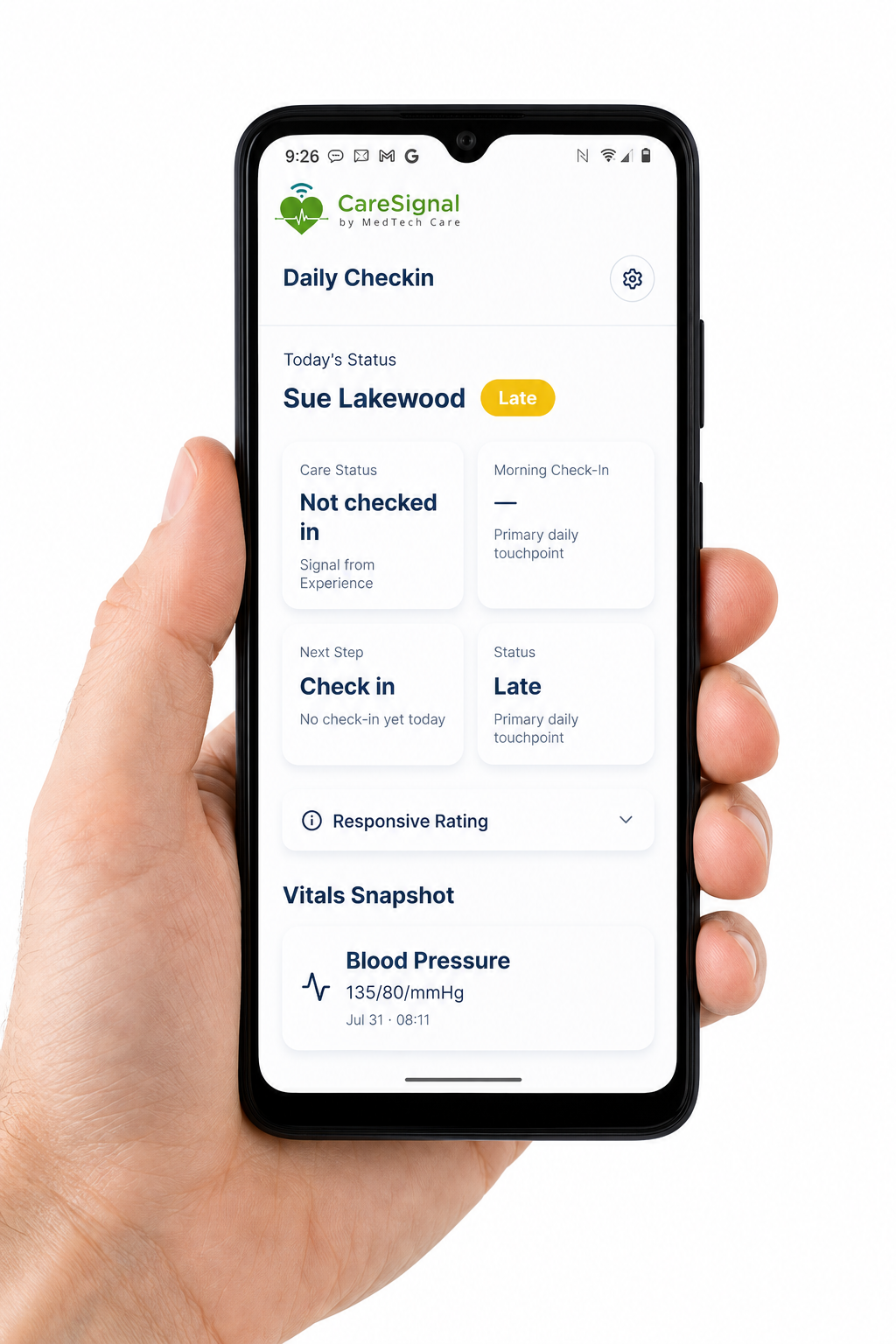
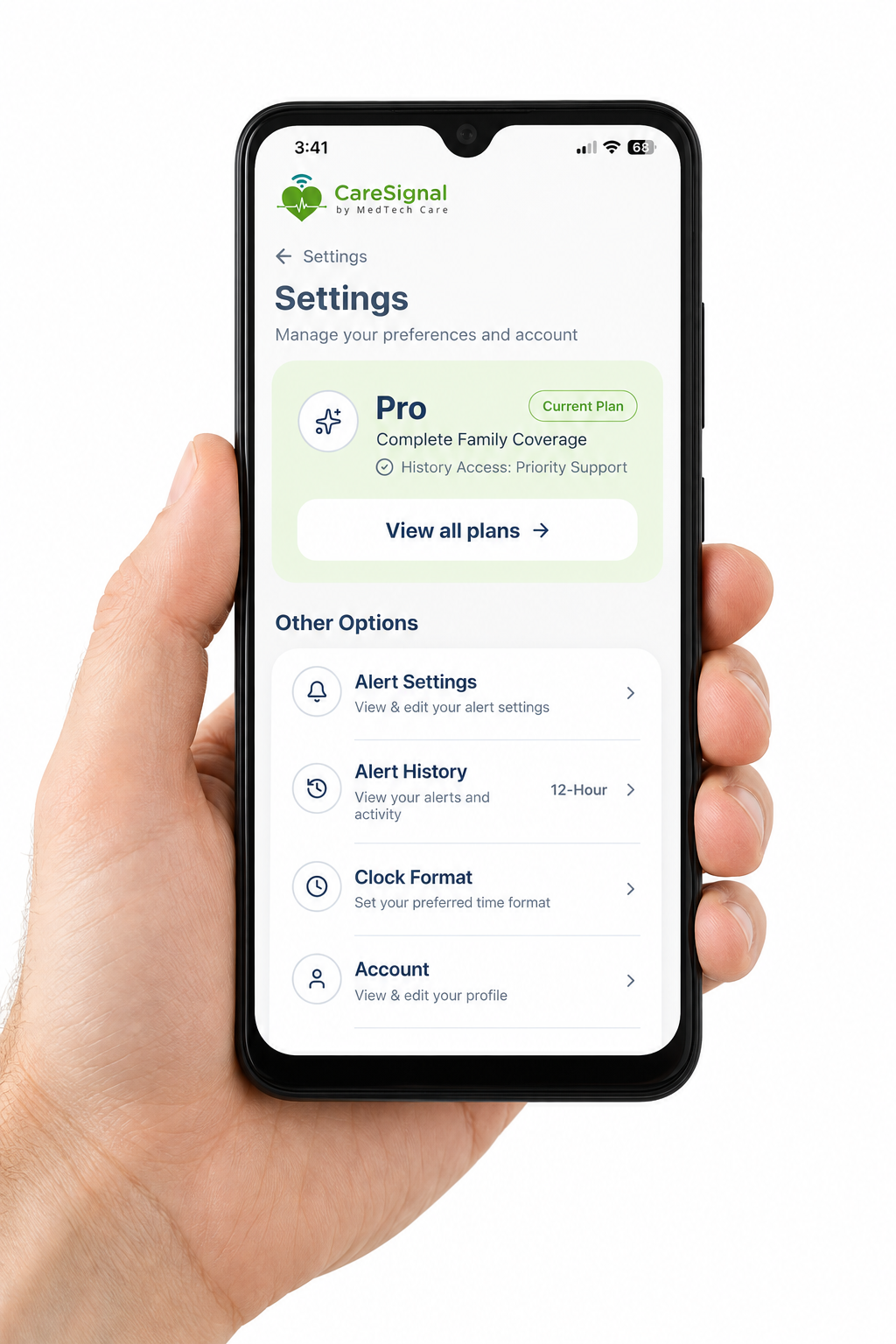
1. Open Settings
From the CareSignal dashboard, select the Settings gear icon in the upper-right corner of the screen.
2. Select an Eligible Plan
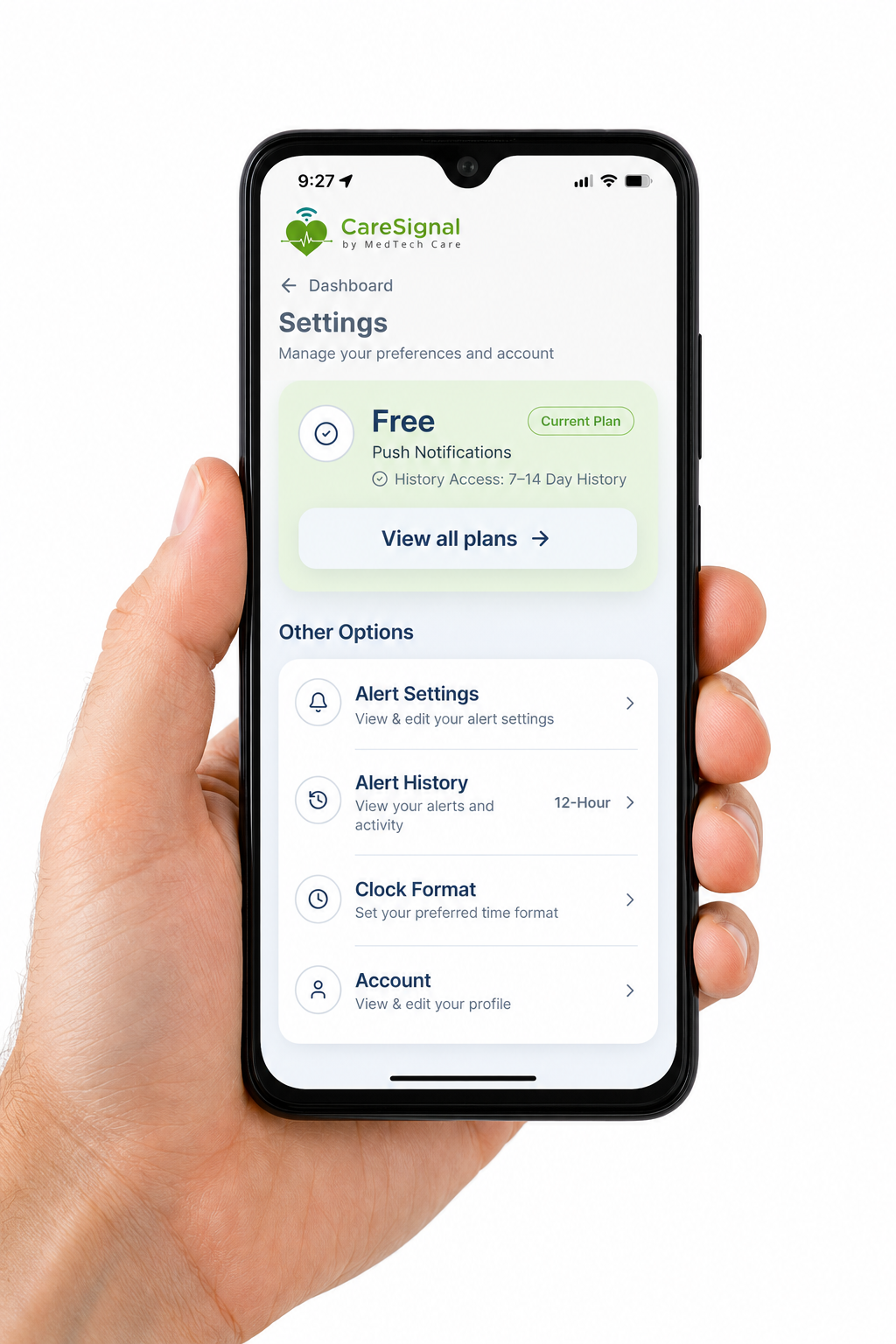
From Settings, select View all plans.
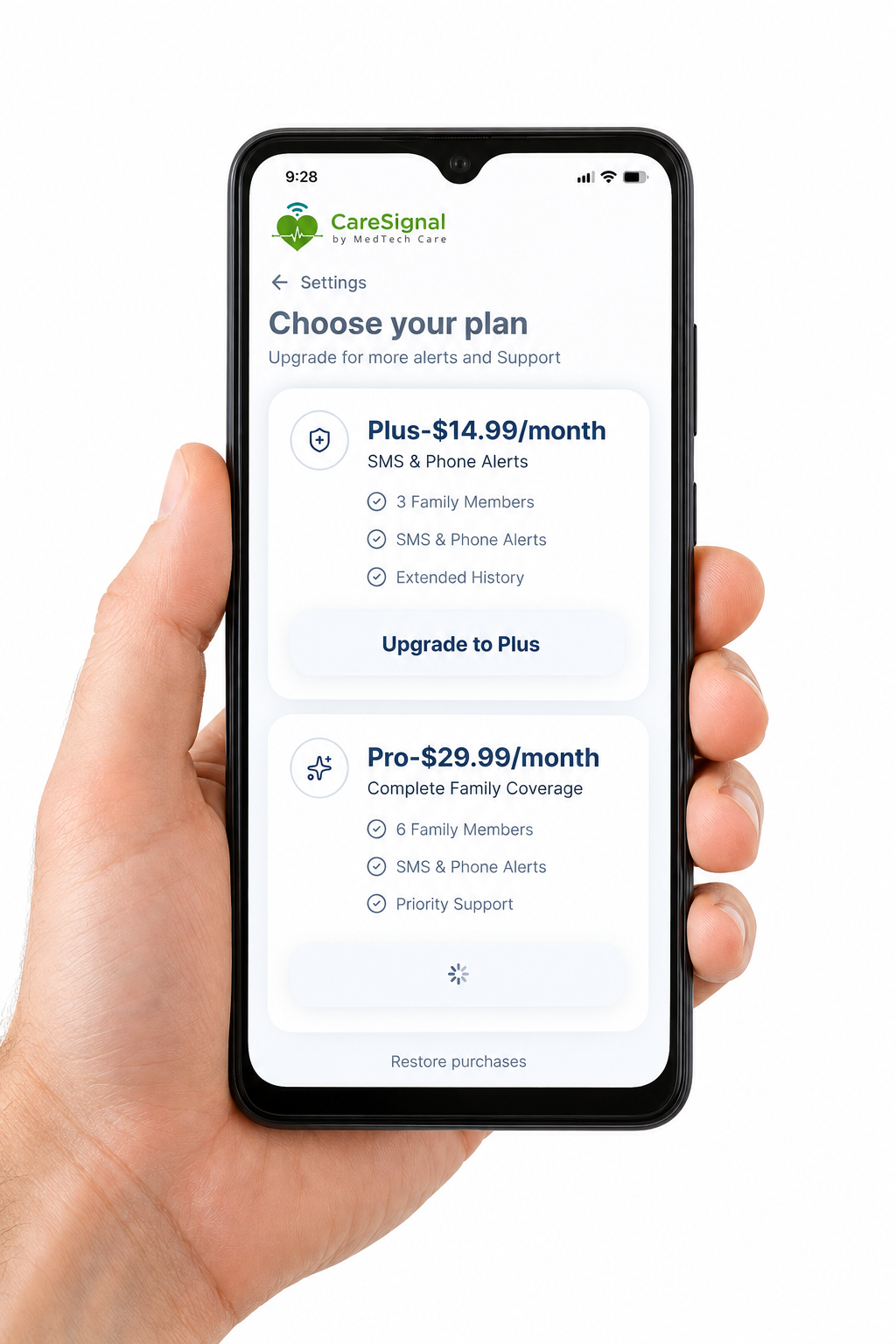
Choose the subscription plan that best fits your needs.
CareSignal SMS alerts are available only on eligible paid plans, including Plus and Pro monthly or yearly subscriptions.
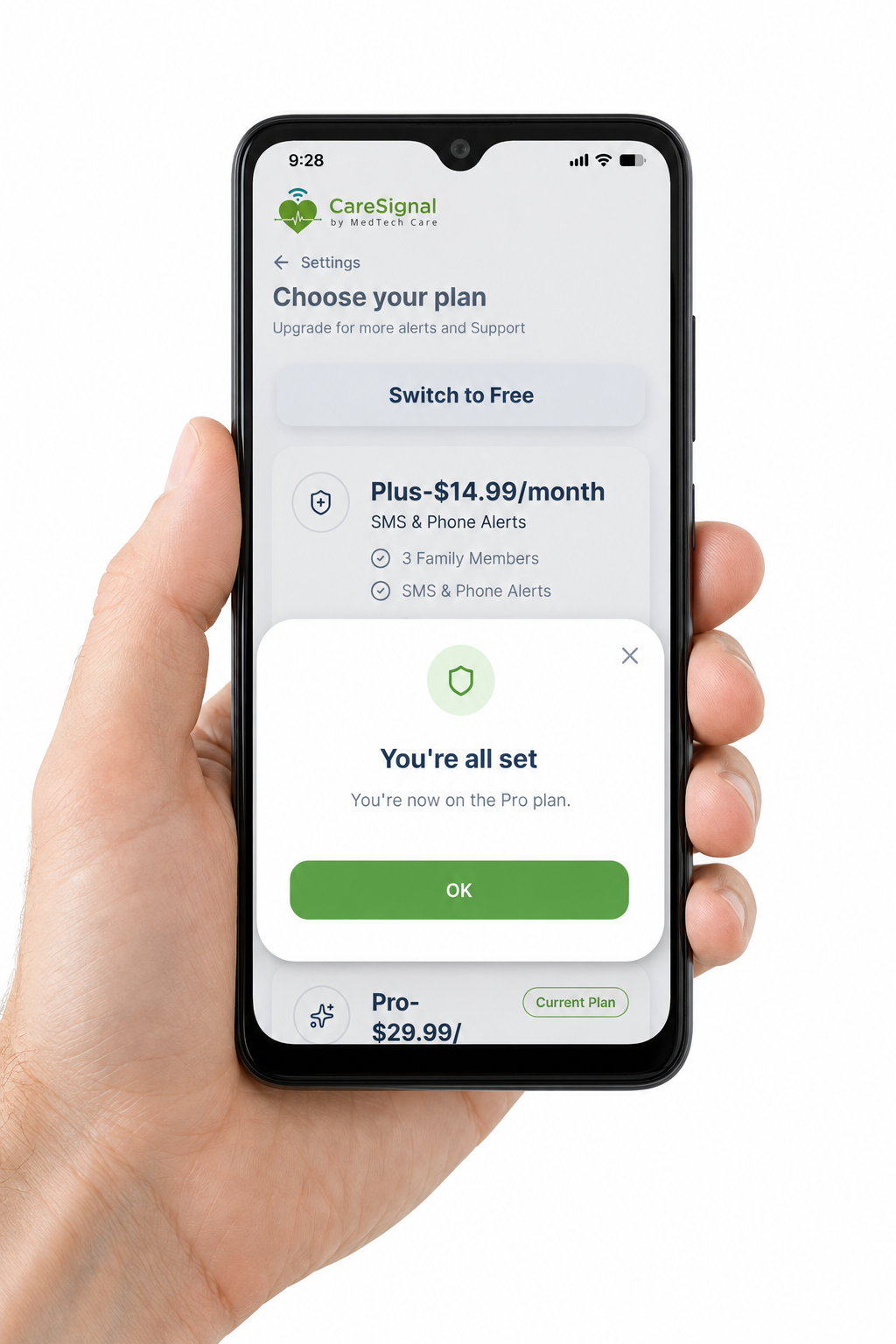
After selecting and purchasing a plan, the user will see the confirmation message:
“You're all set”
Select OK to continue.
3. Open Alert Settings
From Settings, select Alert Settings.
4. Select a Text Alert
For an eligible CareSignal alert type, the user selects Text Alert as a notification option.
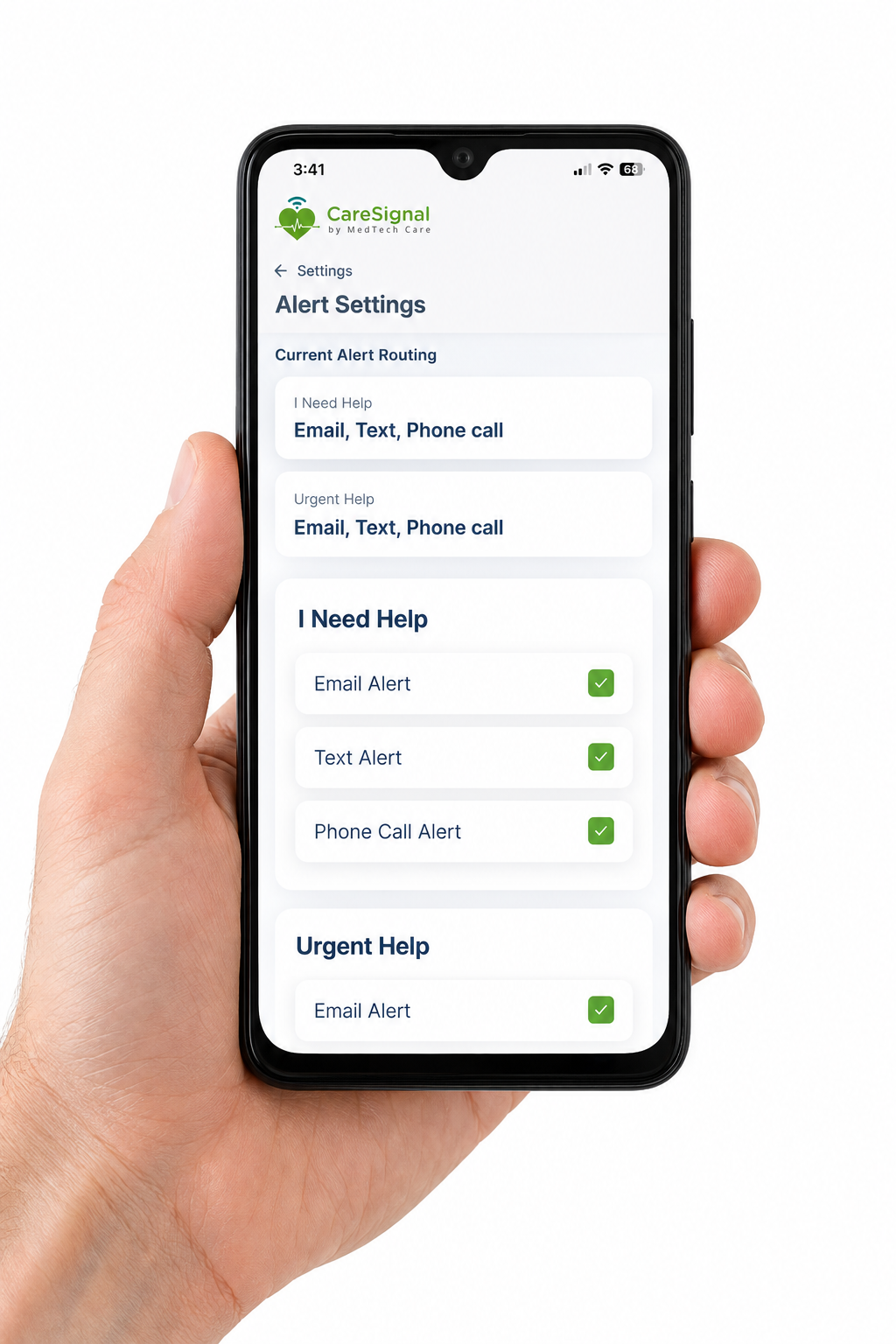
5. Review the SMS Consent Screen
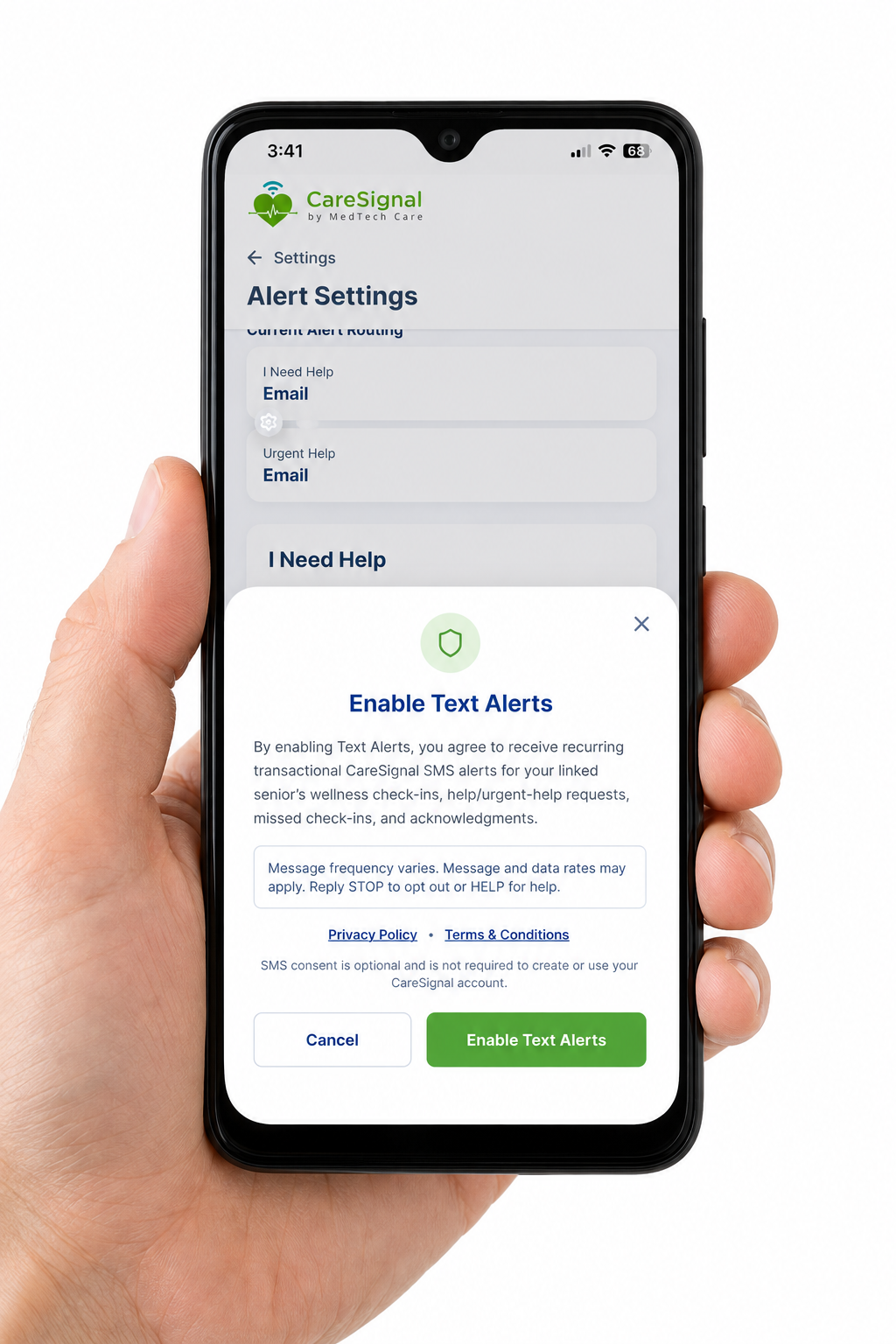
Because Text Alerts are disabled by default, CareSignal displays the Enable Text Alerts consent screen before SMS messaging can be activated.
The consent screen explains that:
- The user is agreeing to receive transactional CareSignal SMS messages.
- Messages may include wellness check-ins, help requests, urgent attention notifications, missed check-ins, alert acknowledgments, account notifications, and support-related service messages.
- Message frequency varies.
- Message and data rates may apply.
- Users may reply STOP to opt out.
- Users may reply HELP for help.
- CareSignal SMS messages are not used for advertising or promotional marketing.
- SMS consent is optional and is not required to create or use a CareSignal account.
- Links to the CareSignal Privacy Policy and Terms & Conditions are provided.
6. Affirmatively Opt In
To enable SMS alerts, the user must affirmatively select:
Enable Text Alerts
SMS messaging is not enabled unless the user takes this action.
7. Decline SMS Messaging
The user may instead select:
Cancel
Selecting Cancel leaves Text Alerts disabled.
The user can continue using CareSignal and receive other available notification types without opting in to SMS messaging.
8. Manage or Disable SMS Alerts
Users can return to:
Settings → Alert Settings
to manage their notification preferences.
Users may also reply STOP to any CareSignal SMS message at any time to opt out of future SMS messages.
Required Messaging Disclosure
Message frequency varies. Message and data rates may apply. Reply STOP to opt out or HELP for help.
Optional Consent
SMS consent is optional and is not required to create or use a CareSignal account. Users who do not enable Text Alerts may continue using other CareSignal features and available notification methods.
Privacy & Terms
For additional information regarding CareSignal messaging, data handling, and service terms, please review:
SMS Help and Opt-Out
Recipients may reply STOP to CareSignal SMS messages at any time to unsubscribe. Recipients may reply HELP for assistance. After opting out, no further CareSignal SMS messages will be sent unless the recipient subsequently re-enrolls through a supported opt-in method.